
When a Team member leaves
On WhatsApp, a person who leaves takes your Clients' papers with them on their phone. On Reposha, the files never lived on their phone. Disable their login and their access ends that minute.
Who can do this: the Owner.
Time: about 3 minutes, ideally on their last working day.
At a glance
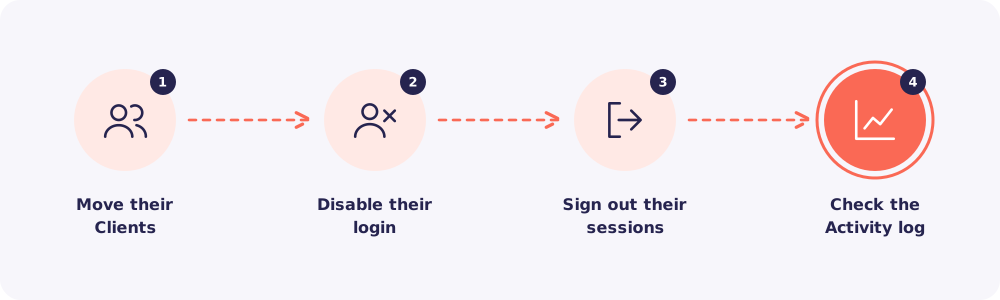
Step 1. Move their Clients
Go to Team and open the person's name. Note the Clients assigned to them.
Then assign those Clients to someone else, so no request is left without an owner.
Step 2. Disable their login
On the same page, click Disable. Their login stops working at once.
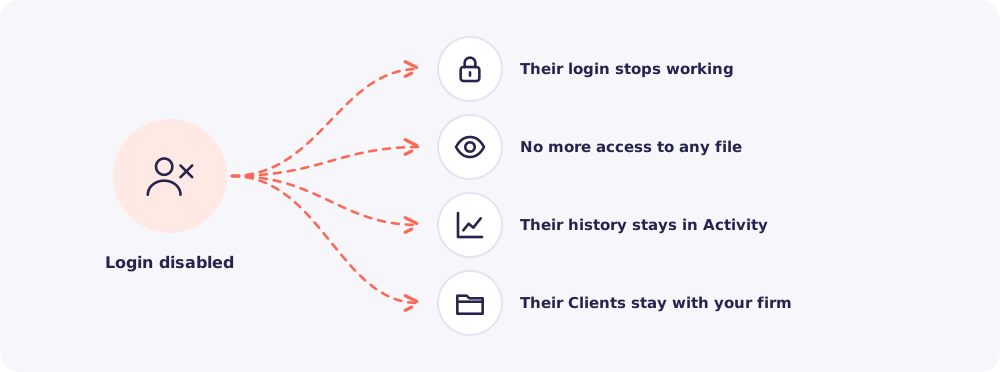
Disable, don't delete. Disabling keeps their name on every past action in the Activity log. Your records stay complete.
Step 3. Sign out their sessions
To be sure, go to Settings → Security and sign out any session that is still open for them.
Step 4. Check the Activity log
Go to Activity and filter by the person's name. Look at their last few weeks.
Watch for anything unusual, such as many downloads in a short time. If something looks wrong, you have a full record of what they opened and when.
Quick answers
Someone is moving to another role, not leaving. Don't disable them. Open their name in Team and change their role or their assigned Clients instead.
What about files they downloaded before leaving? Reposha can't reach copies saved on their own computer. But the Activity log shows exactly which files they downloaded, and when. So you know precisely what to follow up on.