
Assign Clients to Team members
Assigning decides who works on which Client. Staff see only the Clients assigned to them. Upload notifications for a Client go to the Owner and the people assigned to it.
Who can do this: the Owner and Managers.
Time: about 2 minutes.
Two ways to assign
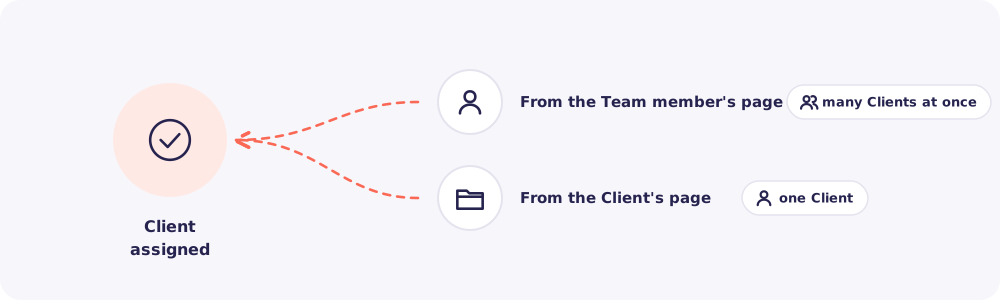
Way 1. From the Team member's page
Best when someone new joins, or when you hand over a whole set of Clients.
- Go to Team and click the person's name.
- Find Assign Clients.
- Tick every Client they should handle. Then save.
Way 2. From the Client's page
Best when you add one new Client, or move one Client to someone else.
- Go to Clients and open the Client.
- Go to the Settings tab.
- Choose the assigned Team members. Then save.
What changes once a Client is assigned
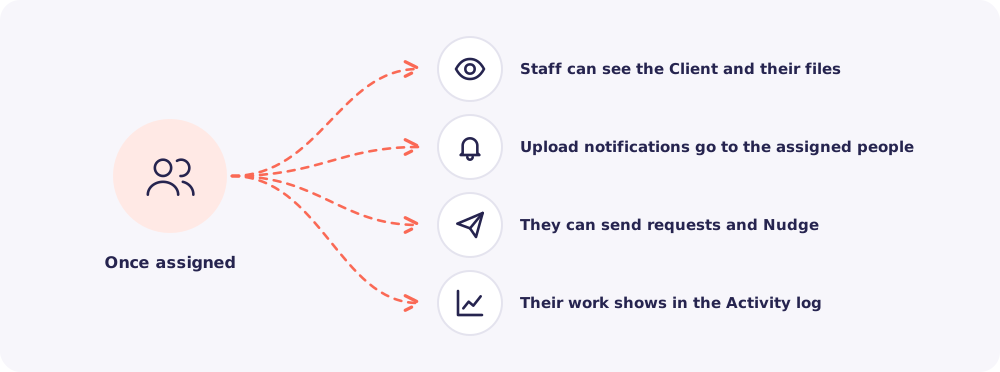
Good to know: A Client can have more than one Team member. For example, an article assistant who collects the papers, and a Manager who checks them.
Quick answers
Do I need to assign Clients to Managers? Managers can already see every Client. Assign them anyway if you want them to get the bell notifications for that Client.
Can I assign Clients to myself? Yes. The Owner is on the team too, so your name is in the list.
A Staff member can't find a Client. The Client isn't assigned to them yet. Assign it, and it appears in their list straight away.