
First login for Team members
Reposha doesn't send invitation emails. Instead, your Owner creates your login and gives you the details directly. On your first login, you swap the temporary password for your own.
You will need: the email and temporary password your Owner gave you.
Time: about 2 minutes.
How it works
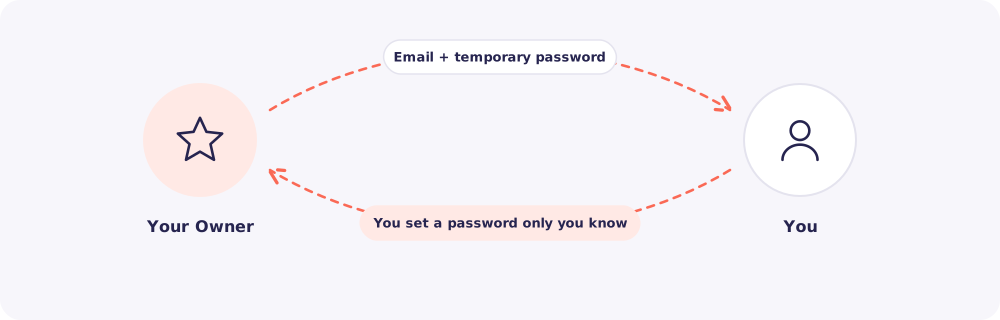
At a glance
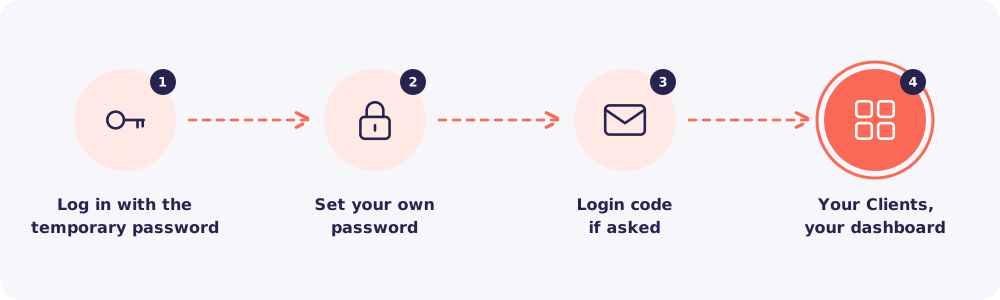
Step 1. Log in with the temporary password
Go to app.reposha.com. Enter the email and temporary password from your Owner.
Step 2. Set your own password
Reposha asks you to choose a new password straight away. You can't do anything else until you do.
Pick something only you know. Don't share it, not even with your Owner.
Why this matters: Every file you open is recorded in the Activity log under your name. Your own password makes sure that record is truly yours.
Step 3. Enter a login code, if asked
If your firm uses login codes, Reposha emails you a 6-digit code. Type it in within 10 minutes.
Step 4. Your dashboard
You're in. Your dashboard shows the files to review and the requests for your Clients.
Good to know: If you are Staff, you see only the Clients assigned to you. If a Client is missing, ask your Owner or Manager to assign them.
Quick answers
My temporary password doesn't work. Check for extra spaces when you paste it. Still stuck? Ask your Owner to reset your password from Team.
Can I use the same login for two firms? No. One email belongs to one firm's account. Use a different email for another firm.
I forgot my new password. Click Forgot password on the login page. Or ask your Owner to reset it.