
Review and accept new files
A file that has arrived isn't the same as a file that's right. Reviewing catches the blurry photo or the wrong year now, not on the filing deadline.
Time: a few seconds per file.
Where new files show up
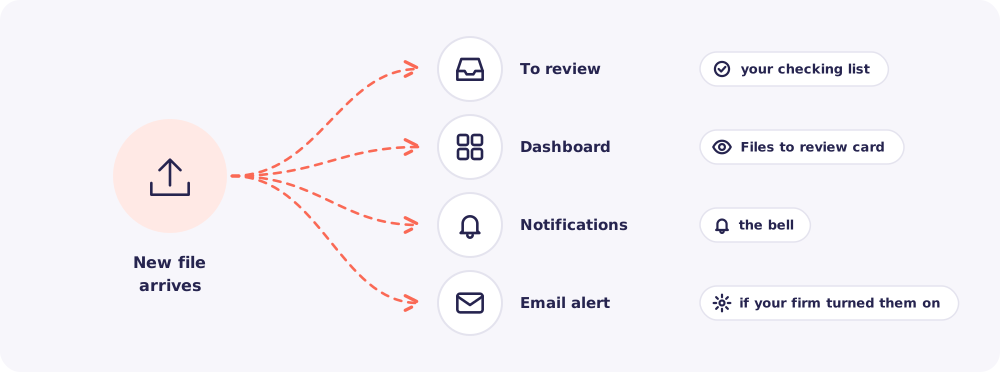
You'll see a new upload in four places. To review is the one to work from. It lists every new file for your Clients that nobody has checked yet.
At a glance
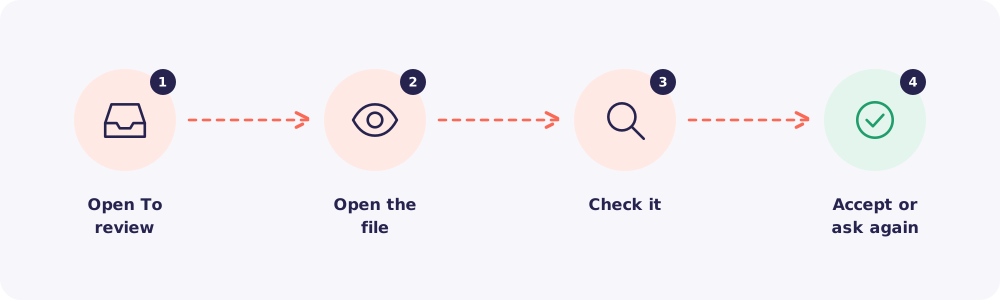
Step 1. Open To review
Click To review in the left menu. Or click the Files to review card on your dashboard.
Step 2. Open the file
Click Open on a file. PDFs and photos open in a new tab. Word, Excel and CSV files download.
Step 3. Check it
Look for the usual problems:
- Is it readable, with nothing cut off?
- Is it the right document, for the right year?
- Are all the pages there?
Step 4. Accept, or ask again
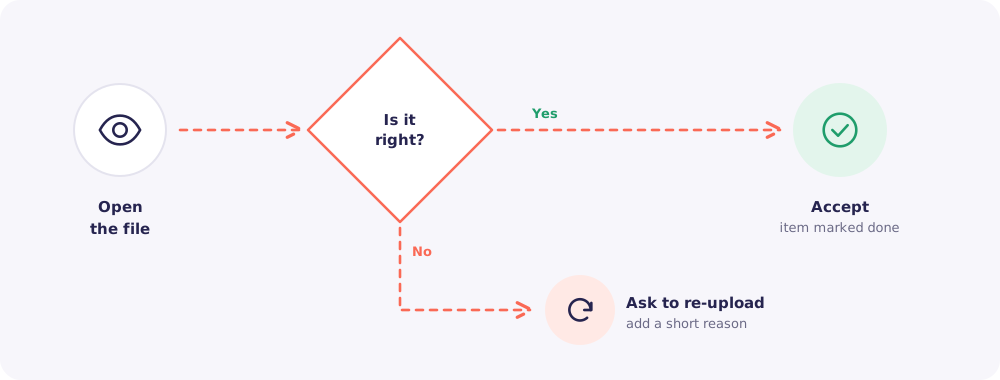
- It's right: click Accept. The item is marked done and leaves To review.
- It's not right: click Ask to re-upload and add a short reason.
Good to know: Staff see only the files for their assigned Clients. Owners and Managers see every new file.
Quick answers
Is opening a file recorded? Yes. Every open and download is written to the Activity log with your name and the time.
Can my Client see whether I accepted the file? No. Clients never see stored files or their status. They only see their checklist when they upload.