
Delete and restore a Client
When you no longer work with a Client, you can delete them. Reposha gives you 7 days to change your mind.
Who can do this: the Owner and Managers.
Time: about 2 minutes.
What happens when you delete
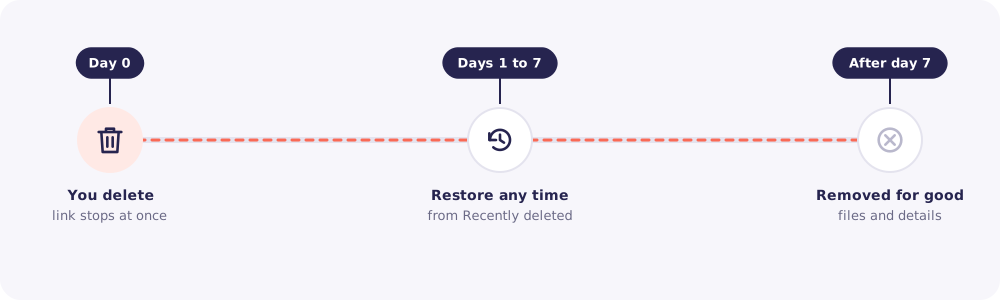
- At once: the Client disappears from your lists, and their upload link stops working.
- For 7 days: you can restore the Client with all their files.
- After 7 days: the Client's files and personal details are removed for good.
Step by step
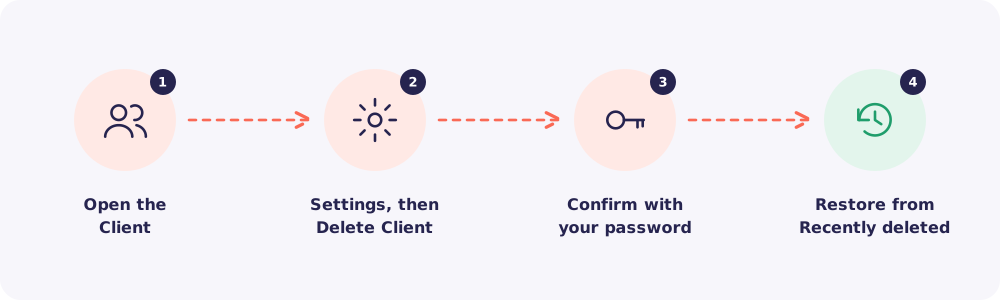
Step 1. Open the Client
Go to Clients and open the Client's page.
Step 2. Delete the Client
Go to the Settings tab and click Delete Client.
Step 3. Confirm with your password
Reposha asks for your password once more. This stops anyone deleting Clients from a computer you left logged in.
Step 4. Restore, if you need to
Changed your mind? Go to Recently deleted within 7 days. Find the Client and click Restore. Their folder, files and link come back as they were.
Before you delete
- Download what you must keep. Your firm may need some records for years. Keep your own copies before deleting.
- Check the reason. If the Client asked you to delete their data, use Client deletion requests instead. That keeps a proper record of the request and your decision.
Good to know: The deletion is recorded in the Activity log with your name and the time.