
Delete and restore files
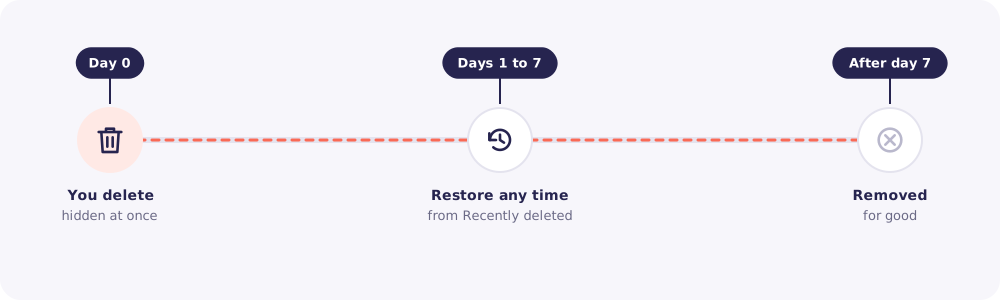
Delete duplicates and wrong uploads to keep a Client's folder clean. If you delete the wrong one, you have 7 days to bring it back.
Who can do this: the Owner and Managers.
Time: under a minute.
What happens when you delete
Step by step
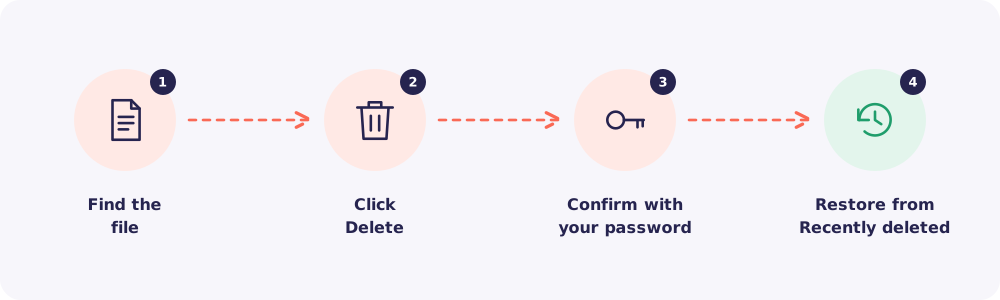
Step 1. Find the file
Open the Client's Files tab and find the file.
Step 2. Delete it
Click Delete.
Step 3. Confirm with your password
Reposha asks for your password once more. Deleting is serious, so it double-checks it's really you.
Step 4. Restore, if you need to
Go to Recently deleted within 7 days. Find the file and click Restore. It goes back to the same place.
Good to know: Every delete and restore is recorded in the Activity log.
Quick answers
Staff can't see the Delete button. That's by design. Only the Owner and Managers delete files. Staff can ask for a re-upload instead.
Can I recover a file after 7 days? No. After 7 days the file is removed from storage for good.