
Add your logo and brand colour

People are rightly careful with links. When your Client opens theirs and sees your firm's logo and colour, they know it's really you.
Who can do this: the Owner and Managers.
You will need: your logo as a PNG or JPG file.
Time: about 2 minutes.
At a glance
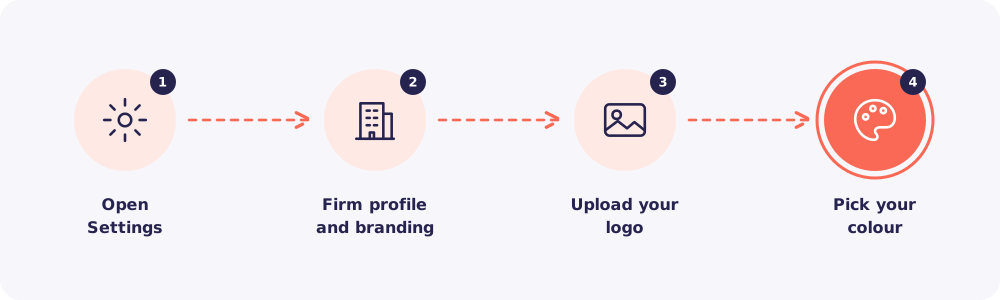
Step 1. Open Settings
Click Settings in the left menu.
Step 2. Open Firm profile and branding
Click Firm profile and branding.
Step 3. Upload your logo
Upload your logo. A clear logo on a plain or see-through background works best.
Step 4. Pick your colour
Choose your brand colour. Then save.
Where your Clients see it

- The code screen. The first thing your Client sees when they tap the link.
- The upload page. While they choose files and upload.
Tip: Open your own test link on your phone after saving. See what your Clients see.
Quick answers
I skipped this at sign-up. That's expected. Sign-up asks only what payment needs. Branding is always added here, after payment.
Can Staff change the logo? No. The Owner and Managers can change branding. The rest of Settings is for the Owner.