
Export the Activity log
Sometimes you need the record on paper: for a Client who asks who saw their documents, for an internal review, or for a dispute. Export exactly the part you need.
Who can do this: the Owner and Managers.
Time: about 2 minutes.
Which way to export
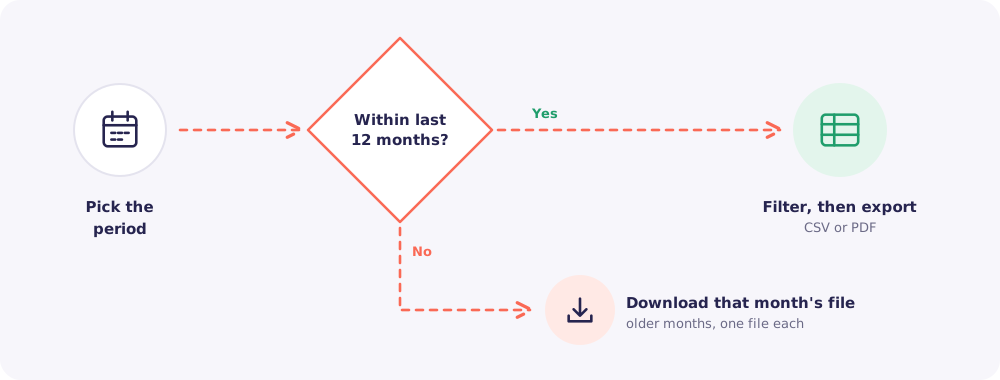
Last 12 months: filter and export
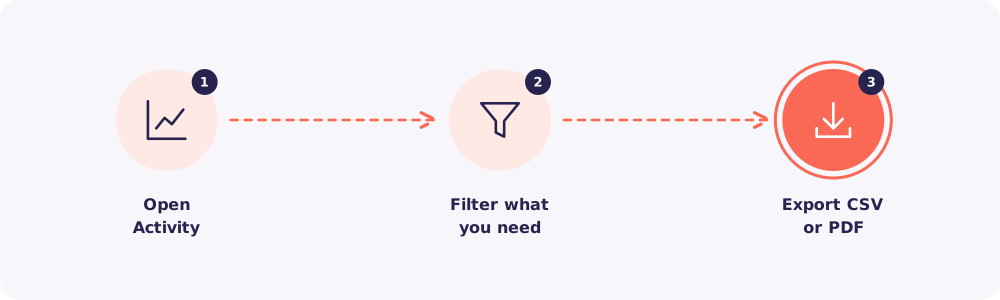
Step 1. Open Activity
Click Activity in the left menu.
Step 2. Filter what you need
Narrow it down by Client, file, Team member or dates. The export includes only what you see.
Step 3. Export
Choose the format:
- PDF to share or print. Good for a Client or a reviewer.
- CSV to sort and analyse in Excel.
Reposha asks for your password before exporting. The export itself is recorded in the log too.
Older than 12 months
Older months are kept as one file per month. On the Activity page, find the month you need and download its file.
Quick answers
A Client asked who has seen their documents. Filter by that Client and export a PDF. It lists every view and download, with names and times.
Can I change an entry before exporting? No. Entries can't be edited by anyone. That's what makes the record trustworthy.